How to Create a Postcard Campaign (2026)
A postcard can still earn a place on the kitchen counter when an email would be deleted. For a plumber, HVAC shop, landscaper, cleaner, or roofer, a mailer can…
A postcard can still earn a place on the kitchen counter when an email would be deleted. For a plumber, HVAC shop, landscaper, cleaner, or roofer, a mailer can remind past customers you are nearby or introduce a seasonal offer. You do not need a design agency to start a postcard marketing campaign. In Better Sales Pro, Marketing Maker and the Templates library give you the layout, brand tools, and direct-mail setup in one account.
This guide covers how to pick a postcard template, design it, add optional tracking, and move into a campaign. (Real estate professionals should use the tools built for that market on We Are Realty.)
Why service businesses still use postcards
Postcards work well when the offer is simple and local. A headline, one photo, and a clear next step can be read in a few seconds. They are a natural fit for seasonal work such as spring cleanups or pre-winter HVAC tune-ups. Merge fields let you personalize names without redesigning the piece, and you can add a trackable QR code or a tracked phone number to measure responses.
A postcard will not replace a steady plan to get more customers, but it is a useful piece of that plan when the message is specific.
Start in Marketing Templates
In Better Sales Pro, open Marketing → Templates. The gallery heading is Marketing Templates ("Create, organize and optimize your marketing assets"), with tabs that include Letters, Postcards, Social Media, and Print.
Click Postcards. You can Filter postcard size by All postcard sizes, Small (4.25×6), Standard (6×9), Large (6×11), or Custom. The gallery includes Default 6 x 9 Postcard, Default 4 x 6 Postcard, and Default 6 x 11 Postcard.
Select a card to open its detail view. There you can switch between Front and Back, then use Open Designer, Save, Preview, Export PDF, or Duplicate. The header also includes Share, REVA, and More. Details typically show size, sides, 300 DPI, and a 0.125 in bleed.
If you do not want a default card, the tab also offers New Postcard ("Direct mail sizes & designer"), Generate with REVA for AI-assisted copy, and Import Template. REVA and BEN are AI assistants inside the tool; edit anything they draft so the offer and contact details are accurate.
Design the postcard in Marketing Maker
Choose a template and click Open Designer to open the Marketing Maker canvas. Top controls include Design name, Preview Data, Focus, Share, Preview, Export, and Save. Side panels include Elements, Templates, Properties, Uploads, Layers, and Pages. Starter actions on a fresh canvas include Choose Template, Upload Media, Add Text, Add Shape, and Generate with BEN.
Add text, photos, brand, and merge fields
Open Elements. The important groups for a service-business card are:
- Text — headings and body copy
- Media — images and video
- Brand — brand kit assets such as saved colors, fonts, and logos
- Data — dynamic merge fields for personalized details
Brand tools let you manage kits, colors, typography, logos, styles, and themes so the postcard matches the truck wrap and website. Keep your public name, phone, and address consistent with your other listings; our local SEO directory profile guide explains why that NAP consistency matters.
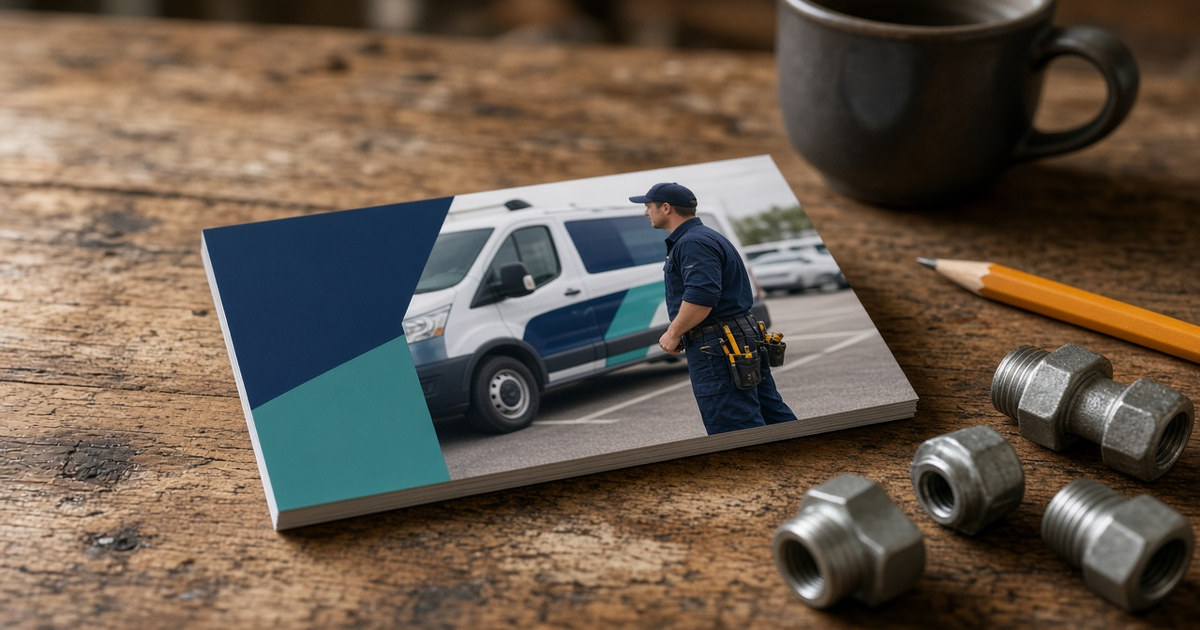
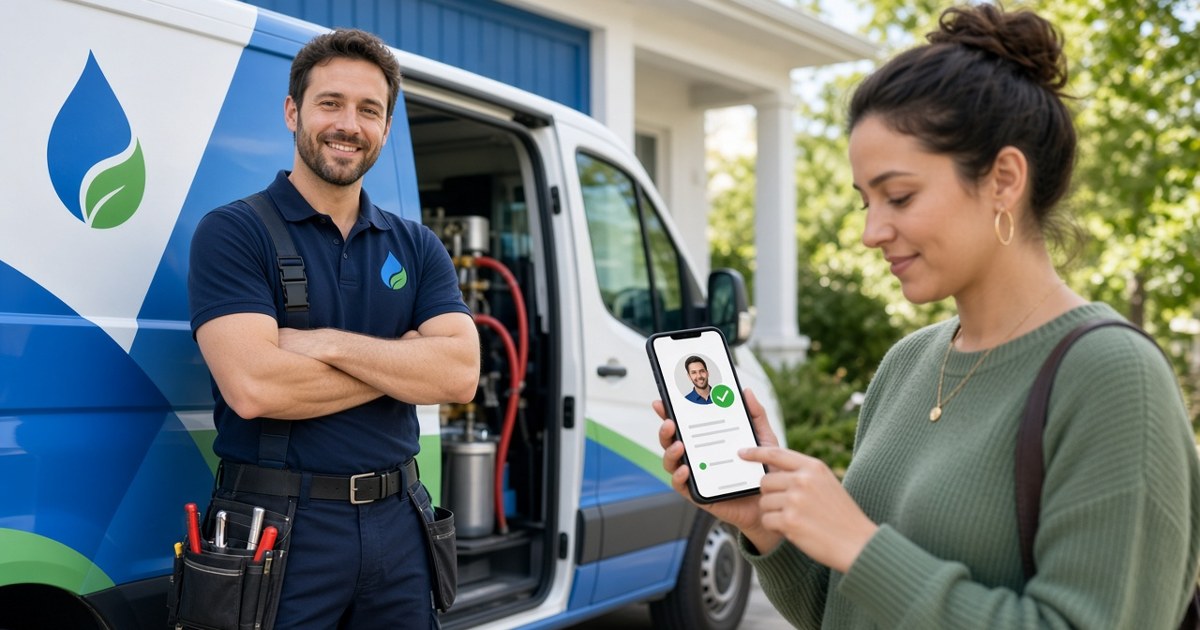
Use a real crew or job-site photo when you have permission. The offer line should be as plain as your business description: what you do, where you work, and what the customer should do next (call, scan, or request an estimate).
Browse home-service templates inside the canvas
The Templates panel inside the designer goes beyond the three default cards. Browse My, Company, Team, Recent, or Favorites, and filter by Format, Industry, and category. For this kind of business, start with the Home Services industry and a category such as Plumbing, HVAC, Landscaping, Cleaning, Roofing, or Electrical.
Starter themes include Service Promo, Seasonal Offer, Before & After, Customer Review, New Service, Team Spotlight, Event, Hiring, and Holiday, with postcard- and flyer-style variants. Pick a theme that matches a real offer you can deliver this month.
Proof the card before you leave the designer
Use Preview to check the layout, and Preview Data to see how merge fields look with sample information. The canvas shows Bleed, Safe Area, and 300 DPI guides. Keep phone numbers, QR codes, and headlines inside the safe area so nothing is trimmed in print.
When you need a file, Export includes PNG, JPG, PDF Standard, and PDF Print (plus other formats such as GIF, MP4, and PowerPoint). For a mailer, PDF Print is the usual print-ready choice. Click Save and give the design a clear name, such as "Spring HVAC tune-up 6x9."
Set up the Direct Mail campaign
Designing the piece is only half of the campaign. Next, open Marketing → Mail. This Direct Mail area is described as a place to "Create, send, and track personalized letters and postcards." Start a New Campaign or open a draft and click Edit. Setup is organized in four steps: 1 Setup, 2 Content, 3 Recipients, and 4 Review & Send.
Step 1: Setup
On Setup, choose the Postcards type (Letters is the other type). Then set:
- Postcard trim size: 4×6, 6×9, or 6×11. Help text notes that the design canvas matches this trim at 300 DPI. Use the same size you designed.
- Campaign Name — this identifies the campaign in your account, not necessarily on the card itself.
- Who is doing this campaign? — displayed in the "From" field of the recipient's mail.
- Where is the Mailer from? — displayed in the "From Address" field. Complete Select Address, From Address, Unit #, City, State, Zip Code, and Country.
Add optional response tracking
Still on Setup, Response tracking is optional.
- QR code → landing page. Choose Add a trackable QR to this campaign. The code is encoded during the creative step. Point it at a simple page that matches the offer — your website, a contact form, or a clear profile page.
- Tracked phone number. Use SELECT A PHONE NUMBER if you want calls from the card attributed to this campaign. Help text points to account phone numbers and call tracking under Phone settings, including the option to get a new number.
When Setup looks right, use NEXT STEP: CONTENT to work on the creative.
Content, recipients, and review
Step 2, Content, is where the postcard design lives in Marketing Maker. Confirm both sides, the QR placement, and the phone number on the card itself.
For Recipients and Review & Send, add your recipients and review the campaign carefully before you send it. Check the From name, From address, trim size, offer, and dates. After a campaign exists, its detail view includes tabs for Creative, Delivery, Tracking, Recipients, and Performance, plus a piece preview.
If the mailer generates calls or form fills, have a follow-up process ready so those responses do not sit unanswered.
Practical tips for a better mailer
- One offer per card. "Fall gutter check, call for a time window" is clearer than a menu of ten services.
- Make the next step obvious: a phone number, a trackable QR, or both.
- Use merge fields for the greeting, but keep the core offer the same.
- Match colors and logo to your brand kit, and keep important details inside the safe area.
- If you mention reviews or a special, only use claims you can support.
How Better Sales Pro fits
Better Sales Pro is a business and vendor directory with optional CRM, website, and marketing tools in the same account. You design postcards under Marketing → Templates and send them from Marketing → Mail, with optional QR and phone tracking.
Create your free profile at bettersalespro.com, then open Marketing → Templates → Postcards to build the first card.
FAQ
What postcard sizes can I use in Better Sales Pro?
In Direct Mail setup, trim sizes are 4×6, 6×9, and 6×11, and the canvas is meant to match that trim at 300 DPI. In the template gallery you can also filter by Small (4.25×6), Standard (6×9), Large (6×11), or Custom. Pick one size and stay with it from design through setup.
Do I have to mail the postcard through Better Sales Pro?
No. You can Export a PNG, JPG, or PDF Print file for your records or another printer. To send it as a Direct Mail campaign, use Marketing → Mail, complete Setup and Content, then add your recipients and review before sending.
What is the difference between bleed and the safe area?
Bleed is the extra edge (the templates use a 0.125 inch bleed) that can be trimmed in production. The safe area is inside that edge. Keep headlines, contact details, and QR codes in the safe area so they are not cut off.
Can I see who responded to a campaign?
You can add a trackable QR code to a landing page and a tracked phone number during Setup. Campaign detail also includes Tracking and Performance tabs. Test the QR and number before you mail so attribution is set up correctly.
Next step
Pick one offer you can actually deliver this month, open Marketing → Templates → Postcards, and design a single 6×9 card. Add a trackable QR or phone number if you want to measure results, then set up the campaign under Marketing → Mail. Create your free account at bettersalespro.com.